 Yono
YonoUpdated 24 October 2026.
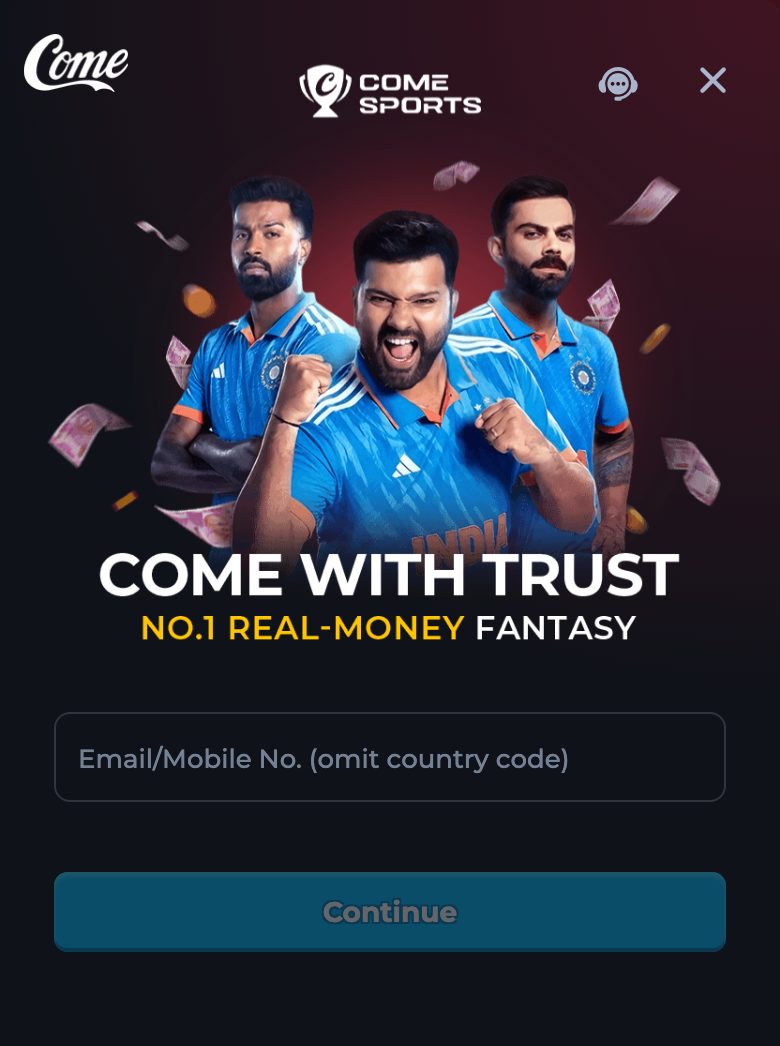
In the installed app, type a mobile number and leave the country code out. The app says registration with e-mail is not currently supported. The browser channel still has a wider field. Use the field on the screen you actually opened.
When this applies
Use this guide when the Yono icon at version name 1.0.1 is open and a form is waiting. Use it when an email address was rejected. Use it when you are not sure whether to include +91. The browser version of the same form, which accepts email or mobile, is the website login guide.
If the icon’s version name is not 1.0.1, stop and read the version guide before you type anything. Logging into a different app is outside these steps.
Before you type
Have the handset that receives SMS for this number. The verification code is sent to the recipient you type. A number you do not control will receive a code you cannot read. Take +91 off the front, and take the spaces out. The label is “Mobile No. (omit country code)”.
Know that this build will refuse a fresh email registration. The strings say so twice: registration with e-mail is not currently supported, and email registration is not currently supported, please use your mobile phone number. If email is the only identity you wanted, use Play in the browser instead of fighting this form.
Do this
- Open the app whose system screen says Yono, version name 1.0.1.
- Tap the mobile field. Type the digits only.
- If you pasted an email and the screen refuses it, clear the field and use the mobile number. That refusal is the expected string, not a fault in the account.
- Continue. If there is no account yet, the channel’s browser text says one is created after verification. In the app, complete the verification the screen asks for rather than hunting a separate sign-up page.
- Choose Code Login if you want the SMS. The title becomes Enter Verification Code. A line says the code was sent to the recipient you typed.
- Type the code on that screen. If it does not arrive, use “Didn't receive the verification code?”. Do not ask a person to read a code to you, and do not read yours to them.
- Choose Password Login only if you already set a password. Forgot password? opens Re-enter password. The hint asks for letters, numbers, and punctuation, 6–30 characters.
- Stop if the screen says there have been too many failed attempts. Wait one hour, or use Customer Service inside the channel once you can open it. This app guide has no phone number.
What the form is not asking
A genuine screen in this flow asks for the mobile number, then a verification code or a password. It can say Logging in. It can say Complete Information if something is still missing. It can say Cannot Login Temporarily. It does not ask for a UPI PIN, a card number, or a banking password. A form that does is not this app. Close it and reopen the icon you checked.
“Log in using another method” can appear, as it does on the browser strings. Use another method only if it is still inside this app. A method that jumps to a chat thread is not on this list.
App field and browser field
| Screen | First field | |
|---|---|---|
| Installed app, version name 1.0.1 | Mobile No. (omit country code) | Registration with e-mail is not currently supported |
| Browser, opened with Play | Email/Mobile No. (omit country code) | An email is accepted on that form |
| Bank app | The bank’s own login | Not this flow |
| A page from chat | Whatever that page drew | Leave it. Open the checked icon, or Play |
After the code is accepted
The navigation should show the channel labels: Casino, Fantasy, Rummy, and the others listed on the game guide. You are done with login. You do not need to install again. If a banner now says Download, that banner is not a required update to version 1.0.1.
If you wanted email after all, you can still open Play in a browser and use the wider field. Do not create a second mobile number just to satisfy both forms unless you mean to. This guide does not track accounts and cannot merge them for you.
If the code never arrives
Check the digits first. A single wrong digit sends the SMS somewhere else. Use the resend control on the verification screen after you are sure of the number. Confirm the phone has a signal. The lock after too many tries is an hour, and the screen says so. Waiting is the fix. Switching to a file from the internet is not the fix.
If the app closes as soon as you open it, the install is the problem, not the form. Re-read the version screen. A crash before any field appears is install stops, or a different app than the one you think.
What this login guide will not do
It will not email you a code, reset a password from this website, or confirm a bonus after the first login. It will not ask you to share the code with support. Customer Service, when the error names it, is a label inside the channel. The code guide is the longer warning.
Questions
Why will the app not take my email?
This build says email registration is not currently supported. Use your mobile number, or use the browser form, which accepts email or mobile.
Do I type +91?
No. Omit the country code. Type the mobile digits that follow it.
I have no account yet.
Stay on this form and finish verification. Do not go looking for a separate registration apk.
The screen wants a UPI PIN. Is that this login?
No screen in this guide asks for a UPI PIN. Close that screen and open the checked Yono icon.
How long is a reset password?
The Re-enter password hint says 6–30 characters, using letters, numbers, and punctuation.